How to Use a Scientific Calculator: A Practical Guide for Students
A practical guide to using the best scientific calculator for students — trigonometry, logs, exponents and worked examples.

What makes a scientific calculator different?
A basic four-function calculator can add, subtract, multiply and divide — and that's about it. A scientific calculator adds the operators and functions that show up in high-school and university coursework: trigonometry, logarithms, exponents, roots, factorials, scientific notation, memory recall, and order of operations that actually respects parentheses. The best scientific calculator for students doesn't just expose more buttons; it shows the full expression you're typing so you can verify each step before pressing equals.
Start with the display
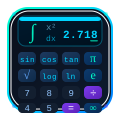
Most scientific calculators show two things at once: the expression you're typing, and the live result below it. On the Scientificalc scientific calculator, the expression is the smaller line on top, and the bold number underneath updates as you type. Get in the habit of glancing at the expression line after every few keystrokes — it's far faster than re-entering the whole problem.
Trigonometry: degrees vs radians
The single biggest source of wrong answers in trig homework is using the wrong angle mode. If your textbook says "find sin 30°", your calculator must be in DEG mode. If it says "evaluate sin(π/6)", switch to RAD. The toggle sits at the top-left of our calculator — check it every time you start a new problem.

Logarithms made simple
The log key is base 10 — used in chemistry (pH), acoustics (decibels) and most science classes. The ln key is the natural log, base e. To compute log base 2 of 32, type log(32)/log(2). That's the change-of-base formula, and it works for any base.
Powers, roots and scientific notation
Use x² for squaring, xʸ for arbitrary powers, and √ for square roots. For scientific notation, the Exp key inserts *10^, so Avogadro's number 6.022 × 10²³ becomes 6.022 Exp 23. Cube roots can be entered as fractional powers: the cube root of 27 is 27^(1/3).

The Ans key: your secret weapon
Long problems rarely fit in one expression. After every =, the result is stored in Ans. Press it to insert the previous answer wherever you need it — perfect for multi-step physics problems where you'd otherwise round too early and lose precision.
Memory keys: M+, M−, MR and MC
The memory keys are the most under-used buttons on a scientific calculator. M+ adds the current result to memory, M− subtracts it, MR recalls the stored value and MC clears it. They shine when you're working through a long arithmetic problem with several sub-totals. Instead of writing 17.456 on scratch paper and re-typing it three lines later, push it into memory and pull it out when needed. Fewer keystrokes means fewer typos and faster work overall.
Parentheses are free — use them generously
A scientific calculator follows the order of operations strictly: parentheses, exponents, multiplication and division (left to right), then addition and subtraction. When in doubt, wrap. (a+b)/(c+d) always behaves the way you expect; a+b/c+d almost never does. Modern displays show matched colours or pair highlights so you can see at a glance which open paren goes with which close — a tiny feature that prevents a surprising number of wrong answers.
Fractions, decimals and the S↔D toggle
When a result comes back as an unfriendly decimal like 0.3333333, look for the S↔D (standard-to-decimal) key. It flips between exact and decimal forms, turning that ugly number into a clean 1/3. This is especially useful in algebra, where the textbook answer is almost always written as a fraction. Train yourself to glance at both forms before copying the result onto your homework.
Constants worth knowing
Most scientific calculators include π and e as dedicated keys, plus a constants menu for things like Avogadro's number, the speed of light and the gravitational constant. Using these built-in values is more accurate than typing 3.14 or 2.718 by hand, and it's faster. The Scientificalc scientific calculator exposes π and e directly so you can drop them straight into any expression.
Statistics for one-variable problems
For mean, standard deviation and variance, switch to statistics mode, type your data values separated by commas or the DATA key, then ask for the summary. This is gold for biology lab reports and any class where you have to crunch a small dataset by hand. Even if you only use it once a term, it saves twenty minutes compared with doing it manually.
Build a personal cheat sheet
After a week of using the calculator, write down the five key sequences you reach for most often. Keep that list inside your notebook. After a month, you won't need the sheet — your fingers will know — but the act of writing it speeds up the memorisation enormously.
Ready to try it?
Open the Scientificalc scientific calculator and work through the examples above — it takes less than five minutes, and you'll walk away with a calculator workflow you can trust on exam day. Bookmark the home page so it's one tap away whenever you sit down to study.
Try it yourself
Open the Scientificalc scientific calculator and work through the examples above — no install, no sign-up.